Seedance 2.0 Image-to-Video API: Animate Any Image with Full Control
Learn to animate images with Seedance 2.0 API — single image, first-last frame, multi-image workflows. Complete Python code, @tag syntax, and e-commerce demos.
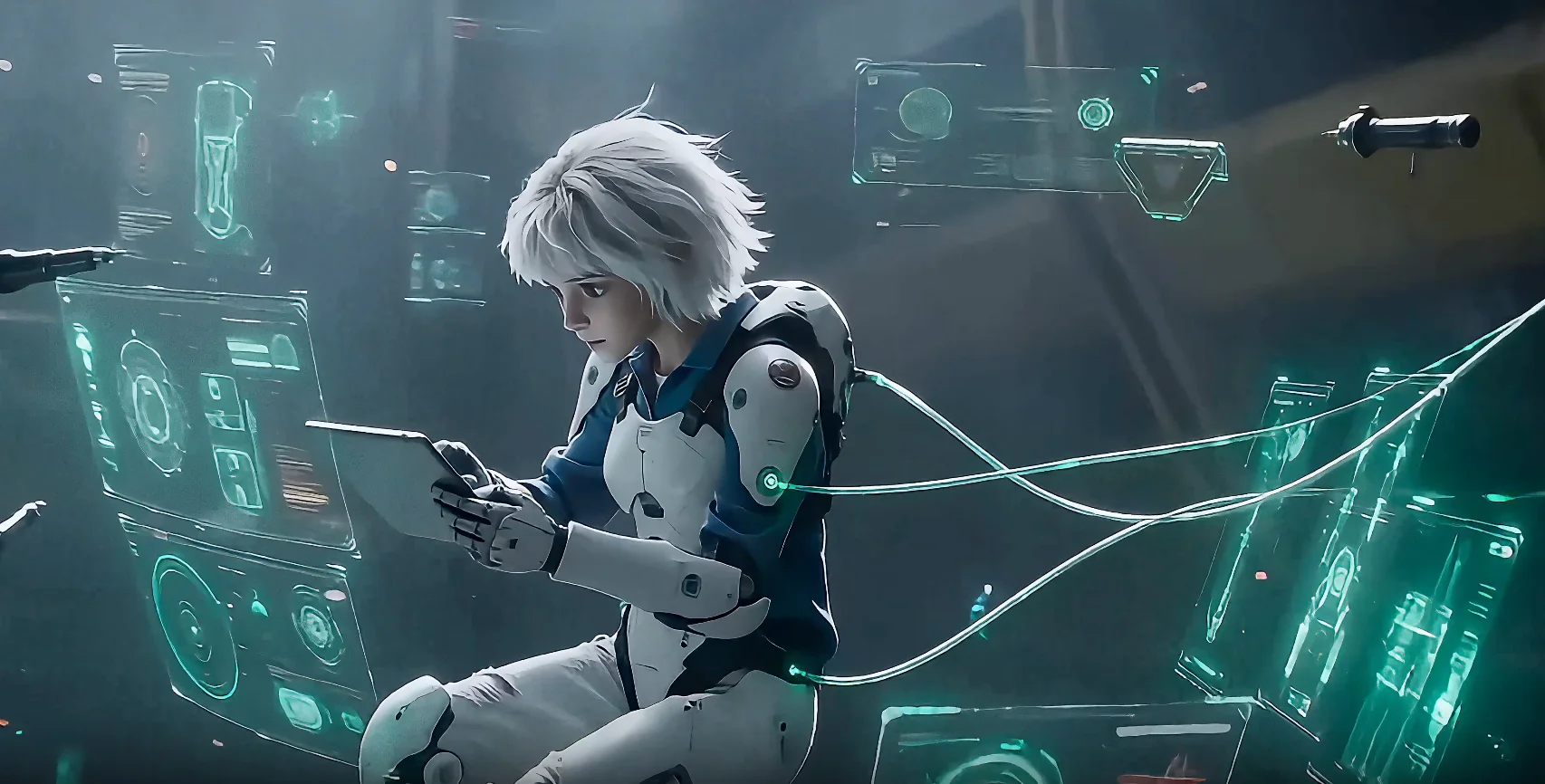
Seedance 2.0 Image-to-Video API: Animate Any Image with Full Control
A single product photo sitting on your hard drive generates zero engagement. A 10-second video of that product rotating under studio lighting, with synchronized sound, generates clicks, shares, and sales. Seedance 2.0's image-to-video API turns any static image into a fully controllable video — through a single POST request.
This guide covers three distinct image-to-video modes: single image animation, first-last frame interpolation, and multi-image composition with @tag references. Each section includes complete, runnable Python code, real demo outputs, and the exact prompts that generated them.
What Makes Seedance 2.0's Image-to-Video Different
Every major AI video platform now offers some form of image-to-video generation. Sora accepts a single image as a starting frame. Kling provides image animation with basic motion control. Veo 2 supports image conditioning for style guidance. They all solve the same surface-level problem: turn a picture into moving pixels.
Seedance 2.0 solves a different problem entirely. It gives you compositional control over multiple images within a single generation request — and it does this through a tagging system that no other API currently matches.
The Core Differences
| Capability | Sora | Kling | Veo 2 | Seedance 2.0 |
|---|---|---|---|---|
| Single image → video | ✅ | ✅ | ✅ | ✅ |
| First-last frame control | ❌ | ✅ (limited) | ❌ | ✅ |
| Multi-image composition | ❌ | ❌ | ❌ | ✅ (up to 9 images) |
| Per-image role assignment | ❌ | ❌ | ❌ | ✅ (image 1, image 2…) |
| Mixed media (image + video + audio) | ❌ | ❌ | ❌ | ✅ (9 images + 3 videos + 3 audio) |
| Native audio generation | ❌ | ❌ | ❌ | ✅ |
| API-first access | Waitlist | ✅ | Limited | ✅ |
The @tag system is where Seedance 2.0 pulls ahead. When you upload three images, you can write a prompt like:
image 1 is the main character. image 2 is the background environment.
image 3 is the art style reference. The character walks through the environment
in the style of image 3.
Each image gets a specific semantic role. The model doesn't guess which image is the character and which is the background — you tell it explicitly. For a deep dive into this tagging system, see the Multimodal @Tags Guide.
Why @Tags Matter for Developers
If you've worked with other image-to-video APIs, you know the frustration: you upload multiple images and hope the model figures out what you intended. Sometimes it uses the background image as the character. Sometimes it blends all images into an incoherent mash. There's no way to debug this because you have no control over how the model interprets each input.
The @tag system eliminates this uncertainty. It's essentially a variable binding system — you name each input and reference it explicitly in your instructions. This makes image-to-video generation deterministic and reproducible. Same inputs, same tags, same prompt → same semantic interpretation every time.
For production pipelines, this is the difference between "try it and see" and "configure it and ship it." You can build templates, validate outputs, and iterate on specific elements without the entire composition shifting unpredictably.
Native Audio Changes the Output
Most AI image-to-video tools produce silent clips. You then need a separate audio generation step, a separate API call, and a video editing pass to combine them. Seedance 2.0 generates synchronized audio as part of the same request by setting generate_audio: true. Footsteps match walking motion. Wind sounds match outdoor scenes. This eliminates an entire post-production step.
What It Won't Do
Seedance 2.0 does not support realistic human faces in image-to-video generation. If your input image contains a photorealistic human face, the API will reject the request automatically. Illustrated characters, stylized faces, anime characters, and non-photorealistic portraits all work fine. This is a deliberate safety constraint, not a technical limitation.
Quick Setup: API Key and Environment
You need three things: an EvoLink account, an API key, and the requests library. The entire setup takes under a minute.
Step 1: Get Your API Key
- Go to evolink.ai and create a free account
- Navigate to the API Keys section in your dashboard
- Generate a new key and copy it
Your key starts with sk- and looks like this: sk-XpXn...Ms1N.
Step 2: Install Dependencies
pip install requests
That's it. No SDK to install, no complex authentication flow. The API uses standard REST with Bearer token auth.
Step 3: Set Up Your Python Environment
import requests
import time
import json

API_KEY = "YOUR_API_KEY"
BASE_URL = "https://api.evolink.ai/v1"
HEADERS = {
    "Authorization": f"Bearer {API_KEY}",
    "Content-Type": "application/json"
}
Every code example in this guide builds on these three variables. Replace YOUR_API_KEY with your actual key and you're ready to generate.
The Polling Helper
Since video generation takes 60–180 seconds, you need a function to poll for completion. This helper works across all three image-to-video modes:
def wait_for_video(task_id, interval=5, max_wait=300):
    """Poll the task endpoint until the video is ready."""
    url = f"{BASE_URL}/tasks/{task_id}"
    elapsed = 0

    while elapsed < max_wait:
        resp = requests.get(url, headers=HEADERS)
        data = resp.json()
        status = data["status"]

        if status == "completed":
            video_url = data["output"]["video_url"]
            print(f"Video ready: {video_url}")
            return data
        elif status == "failed":
            print(f"Generation failed: {data.get('error', 'Unknown error')}")
            return data

        print(f"Status: {status} ({elapsed}s elapsed)")
        time.sleep(interval)
        elapsed += interval

    print("Timed out waiting for video")
    return None
The task status follows a simple lifecycle: pending → processing → completed or failed. Video URLs in the response expire after 24 hours — download or serve them before then.
For a complete walkthrough of the API fundamentals (text-to-video, parameters, error handling), see the Getting Started Guide.
Mode 1: Single Image Animation
Single image animation is the most common image-to-video workflow. You provide one image and a prompt describing the desired motion. The model preserves the visual content of your image while adding realistic movement, camera motion, and environmental effects.
How It Works
When you pass exactly one URL in image_urls, Seedance 2.0 treats it as the primary visual reference. The model anchors the first frame to your image and generates forward motion based on your prompt. The output preserves:
- Color palette from the source image
- Composition and framing
- Subject identity (clothing, shape, features)
- Art style (illustration, 3D render, photography)
Your prompt controls what changes: movement, camera angles, lighting shifts, and environmental dynamics.
Complete Code: Single Image to Video
import requests
import time

API_KEY = "YOUR_API_KEY"
BASE_URL = "https://api.evolink.ai/v1"
HEADERS = {
    "Authorization": f"Bearer {API_KEY}",
    "Content-Type": "application/json"
}

def wait_for_video(task_id, interval=5, max_wait=300):
    url = f"{BASE_URL}/tasks/{task_id}"
    elapsed = 0
    while elapsed < max_wait:
        resp = requests.get(url, headers=HEADERS)
        data = resp.json()
        status = data["status"]
        if status == "completed":
            print(f"Video ready: {data['output']['video_url']}")
            return data
        elif status == "failed":
            print(f"Failed: {data.get('error', 'Unknown error')}")
            return data
        print(f"Status: {status} ({elapsed}s)")
        time.sleep(interval)
        elapsed += interval
    return None

# --- Single Image Animation ---
payload = {
    "model": "seedance-2.0-image-to-video",
    "prompt": (
        "The woman in the painting slowly reaches for a coffee cup on the table, "
        "lifts it to her lips, and takes a quiet sip. Soft morning light filters "
        "through a nearby window. Gentle steam rises from the cup. "
        "Painterly brushstroke texture preserved throughout."
    ),
    "image_urls": [
        "https://example.com/painting-woman.jpg"
    ],
    "duration": 8,
    "quality": "720p",
    "aspect_ratio": "16:9",
    "generate_audio": True
}

resp = requests.post(
    f"{BASE_URL}/videos/generations",
    headers=HEADERS,
    json=payload
)
result = resp.json()
print(f"Task ID: {result['task_id']}")

# Poll until complete
video_data = wait_for_video(result["task_id"])
Run this with your own API key. Swap the
image_urlsvalue for any publicly accessible image URL.
Demo: Painting Comes to Life
Prompt used: "The woman in the painting slowly reaches forward, picks up a coffee cup from the table, and takes a quiet sip. Soft indoor lighting. Painterly brushstroke style maintained. Subtle steam rises from the cup."
This demo uses a single painted portrait as image 1 (the character reference). The model preserves the oil-painting aesthetic while generating natural arm movement and steam physics.
Demo: Style Transfer Animation
Prompt used: "A young girl walks along a winding path through a Van Gogh-style village. Swirling sky with thick brushstrokes. Vibrant yellows and blues. The girl's dress and hair flow in the wind. Camera slowly follows her from behind."
Notice how the Van Gogh brushstroke style from the input image carries through every frame — the swirling sky, the impasto texture on buildings, the color relationships. Single image animation excels at style-consistent motion.
Prompt Best Practices for Single Image Mode
Your prompt determines the quality of the animation. Static descriptions produce static videos. Motion-rich prompts produce dynamic output.
Weak prompt:
A cat sitting on a windowsill
Strong prompt:
The cat stretches lazily on the windowsill, yawns wide showing tiny teeth,
then curls back into a ball. Afternoon sunlight shifts slowly across the fur.
Dust motes float in the light beam. Camera holds steady, slight depth of field.
The difference: the strong prompt specifies sequential actions (stretches → yawns → curls), environmental motion (sunlight shifts, dust motes), and camera behavior (steady, depth of field).
Key principles for single-image prompts:
| Principle | Example |
|---|---|
| Describe motion, not appearance | "walks forward" not "a person standing" |
| Sequence 2-3 actions | "picks up → examines → sets down" |
| Add environmental dynamics | "wind rustles leaves", "rain beads on glass" |
| Specify camera movement | "slow pan left", "camera pulls back to reveal" |
| Match the image's art style | "painterly strokes preserved", "3D render quality" |
For a complete prompt engineering reference, see the Seedance 2.0 Prompts Guide. For camera-specific techniques, see the Camera Movements Guide.
Mode 2: First-Last Frame Control
Single image mode anchors the beginning of your video. First-last frame mode anchors both ends. You supply two images — the opening frame and the closing frame — and Seedance 2.0 generates a smooth transition between them.
How It Works
When image_urls contains exactly two URLs, the model interprets them as:
- First URL → starting frame
- Second URL → ending frame
The model then generates intermediate frames that create a natural, physically plausible transition. Your prompt guides the style of the transition — whether it's a smooth morph, a narrative journey, or a dramatic transformation.
Use Cases
First-last frame control solves problems that single-image mode cannot:
- Before/after reveals: renovation, makeover, seasonal change
- Time-lapse simulation: dawn to dusk, empty room to furnished room
- Scene transitions: one location morphing into another
- Product transformation: closed packaging to open product display
- Morphing effects: one character or style becoming another
Complete Code: First-Last Frame Interpolation
import requests
import time

API_KEY = "YOUR_API_KEY"
BASE_URL = "https://api.evolink.ai/v1"
HEADERS = {
    "Authorization": f"Bearer {API_KEY}",
    "Content-Type": "application/json"
}

def wait_for_video(task_id, interval=5, max_wait=300):
    url = f"{BASE_URL}/tasks/{task_id}"
    elapsed = 0
    while elapsed < max_wait:
        resp = requests.get(url, headers=HEADERS)
        data = resp.json()
        status = data["status"]
        if status == "completed":
            print(f"Video ready: {data['output']['video_url']}")
            return data
        elif status == "failed":
            print(f"Failed: {data.get('error', 'Unknown error')}")
            return data
        print(f"Status: {status} ({elapsed}s)")
        time.sleep(interval)
        elapsed += interval
    return None

# --- First-Last Frame Control ---
payload = {
    "model": "seedance-2.0-image-to-video",
    "prompt": (
        "Smooth cinematic transition. The real-world landscape gradually "
        "transforms into a traditional Chinese ink wash painting. Mountains "
        "dissolve from photorealistic to brushstroke. Water becomes flowing ink. "
        "Sky shifts from blue to rice-paper white. Slow, meditative pace."
    ),
    "image_urls": [
        "https://example.com/real-landscape.jpg",
        "https://example.com/ink-wash-painting.jpg"
    ],
    "duration": 10,
    "quality": "720p",
    "aspect_ratio": "16:9"
}

resp = requests.post(
    f"{BASE_URL}/videos/generations",
    headers=HEADERS,
    json=payload
)
result = resp.json()
print(f"Task ID: {result['task_id']}")

video_data = wait_for_video(result["task_id"])
Demo: Reality to Ink Painting
Prompt used: "The real-world mountain landscape gradually transforms into a traditional Chinese ink wash (山水画) painting. Photorealistic textures dissolve into flowing brushstrokes. Colors fade from vivid to monochrome ink tones. Water surfaces become calligraphic ink flows. Slow, contemplative transition."
The first frame is a photorealistic mountain landscape. The last frame is a traditional ink wash painting of a similar scene. The model creates a seamless transformation where photographic textures progressively dissolve into brushstrokes — an effect that would take hours to achieve manually in After Effects.
Tips for First-Last Frame Mode
Match composition between frames. If your first frame has a mountain on the left, your last frame should have a similar structural element in the same position. The model generates better transitions when both frames share roughly the same layout.
Describe the transition, not just the endpoints. The model already knows what the start and end look like — it has the images. Your prompt should describe how to get from A to B.
# Weak: just describes the endpoints
"A sunrise and a sunset"

# Strong: describes the journey
"The golden dawn light gradually warms to midday brightness,
then softens through amber afternoon hues into deep sunset oranges.
Shadows rotate clockwise. Cloud formations shift and reform."
Use longer durations for complex transitions. A simple color shift works in 4 seconds. A style transformation (photorealistic → illustrated) benefits from 8–12 seconds. Abrupt changes at short durations look jarring.
| Transition Type | Recommended Duration |
|---|---|
| Color/lighting shift | 4–6s |
| Camera position change | 6–8s |
| Style transformation | 8–12s |
| Narrative scene change | 10–15s |
Mode 3: Multi-Image Composition with @Tags
This is Seedance 2.0's most powerful mode — and the one no competing API offers. Using the seedance-2.0-reference-to-video model, you can pass up to 9 images at once and assign each a semantic role using natural language in the prompt (e.g. "image 1 as the character, image 2 as the scene"), and the model composes them into a single coherent video. Note: this capability requires the reference-to-video model — the image-to-video model accepts only 1–2 images.
How @Tags Work
When you include multiple URLs in image_urls, Seedance 2.0 assigns them sequential tags based on their array position:
image_urls[0] → image 1
image_urls[1] → image 2
image_urls[2] → image 3
...
image_urls[8] → image 9
You reference these tags in your prompt to tell the model exactly how to use each image:
image 1 is the main character running through the city.
image 2 is the city skyline in the background.
image 3 defines the color grading and visual mood.
Without tags, the model would have to guess which image is the character and which is the background. With tags, there's no ambiguity. This is especially important when your images look visually similar or when you want a specific image to control style rather than content.
Complete Code: Multi-Image Composition
import requests
import time

API_KEY = "YOUR_API_KEY"
BASE_URL = "https://api.evolink.ai/v1"
HEADERS = {
    "Authorization": f"Bearer {API_KEY}",
    "Content-Type": "application/json"
}

def wait_for_video(task_id, interval=5, max_wait=300):
    url = f"{BASE_URL}/tasks/{task_id}"
    elapsed = 0
    while elapsed < max_wait:
        resp = requests.get(url, headers=HEADERS)
        data = resp.json()
        status = data["status"]
        if status == "completed":
            print(f"Video ready: {data['output']['video_url']}")
            return data
        elif status == "failed":
            print(f"Failed: {data.get('error', 'Unknown error')}")
            return data
        print(f"Status: {status} ({elapsed}s)")
        time.sleep(interval)
        elapsed += interval
    return None

# --- Multi-Image Composition with @Tags ---
payload = {
    "model": "seedance-2.0-reference-to-video",
    "prompt": (
        "image 1 is a parkour runner in dark athletic gear. "
        "image 2 is a futuristic city rooftop at twilight. "
        "image 3 is a neon-lit alleyway. "
        "image 4 is a glass skyscraper facade. "
        "image 5 provides the cyberpunk color grading reference. "
        "The runner (image 1) sprints across the rooftop (image 2), "
        "leaps over the edge, flips through the alleyway (image 3), "
        "and wall-runs along the skyscraper (image 4). "
        "Dynamic handheld camera follows the action. "
        "Cyberpunk neon color palette from image 5 throughout."
    ),
    "image_urls": [
        "https://example.com/runner.jpg",
        "https://example.com/rooftop.jpg",
        "https://example.com/alley.jpg",
        "https://example.com/skyscraper.jpg",
        "https://example.com/cyberpunk-ref.jpg"
    ],
    "duration": 10,
    "quality": "720p",
    "aspect_ratio": "16:9",
    "generate_audio": True
}

resp = requests.post(
    f"{BASE_URL}/videos/generations",
    headers=HEADERS,
    json=payload
)
result = resp.json()
print(f"Task ID: {result['task_id']}")

video_data = wait_for_video(result["task_id"])
Demo: City Parkour with 5 Image References
Prompt used: "image 1 is the parkour runner. image 2 is the rooftop environment. image 3 is the neon alley. image 4 is the glass building. image 5 is the color palette reference. The runner (image 1) sprints across the rooftop (image 2), leaps, flips through the alley (image 3), wall-runs along the building (image 4). Dynamic tracking camera. Cyberpunk color grading from image 5."
Five separate images — a character, three environments, and a style reference — combine into a single continuous action sequence. Each natural-language reference ("image 1 as the character", "image 2 as the scene", …) gives the model precise instructions about which visual element controls which part of the scene.
Common @Tag Role Assignments
The @tag system is flexible. Here are the most effective patterns:
| Role | Tag Usage in Prompt | Purpose |
|---|---|---|
| Character | image 1 is the main character | Preserves identity, clothing, features |
| Background | image 2 is the environment | Sets the scene location |
| Style reference | image 3 defines the art style | Controls rendering aesthetic |
| Object/prop | image 4 is the product on the table | Places specific items in scene |
| Color grading | image 5 is the color palette | Applies mood/tone from reference |
| Texture reference | image 6 provides surface textures | Material/texture transfer |
Demo: Character with Style Reference
Prompt used: "image 1 is the character — a mysterious figure in a red coat. The character runs through rain-soaked city streets at night. Neon reflections on wet pavement. Camera tracks alongside at medium distance. Cinematic atmosphere, shallow depth of field."
A single character reference image controls identity while the prompt drives the environment and action. The red coat, body proportions, and movement style all derive from image 1.
For the full @tag reference — including video and audio tags, mixed media combinations, and advanced role patterns — see the Multimodal @Tags Guide.
Keeping Characters Consistent Across Shots
A single generated clip is useful. A sequence of clips with the same character across different scenes is a story. Character consistency is the hardest problem in AI video generation, and Seedance 2.0's @tag system provides the most reliable solution available through an API.
The Character Lock Pattern
To maintain the same character across multiple shots, use the same character reference image as image 1 in every generation request. Change only the prompt and the background/environment images.
CHARACTER_IMAGE = "https://example.com/my-character.jpg"

shots = [
    {
        "prompt": (
            "image 1 is the main character. She walks into a cozy library, "
            "looks around with wonder, and reaches for a book on the top shelf. "
            "Warm golden lighting. Camera at eye level, slow push in."
        ),
        "extra_images": [],
        "duration": 8
    },
    {
        "prompt": (
            "image 1 is the main character. She sits at a wooden reading table, "
            "opens the book, and pages start glowing with magical light. "
            "Dust particles float in warm lamplight. Camera orbits slowly around her."
        ),
        "extra_images": [],
        "duration": 10
    },
    {
        "prompt": (
            "image 1 is the main character. She steps out of the library into "
            "a fantastical world that matches the book's illustrations. "
            "Vibrant colors replace the muted library tones. "
            "Camera pulls back to reveal the vast landscape. Wide shot."
        ),
        "extra_images": [],
        "duration": 10
    },
]

def generate_shot(shot):
    image_urls = [CHARACTER_IMAGE] + shot["extra_images"]
    payload = {
        "model": "seedance-2.0-image-to-video",
        "prompt": shot["prompt"],
        "image_urls": image_urls,
        "duration": shot["duration"],
        "quality": "720p",
        "aspect_ratio": "16:9"
    }
    resp = requests.post(
        f"{BASE_URL}/videos/generations",
        headers=HEADERS,
        json=payload
    )
    return resp.json()["task_id"]

# Generate all shots
task_ids = [generate_shot(shot) for shot in shots]
print(f"Submitted {len(task_ids)} shots: {task_ids}")

# Poll each shot
for i, task_id in enumerate(task_ids):
    print(f"\nWaiting for Shot {i+1}...")
    wait_for_video(task_id)
Demo: Library Story Sequence
Prompt used: "image 1 is a young girl with braids. She enters a grand old library, runs her fingers along the spines of ancient books, pulls one out, and opens it. Golden dust motes swirl in shaft of light from a high window. Warm, magical atmosphere. Camera follows her at child's eye level."
The character — a young girl with braids — remains visually consistent because the same reference image anchors every shot. The model preserves her proportions, clothing, and visual features while generating different actions and environments.
Consistency Tips
Use a clear, well-lit character reference. The model extracts identity features from your reference image. A blurry, poorly lit, or heavily occluded image gives the model less to work with. Front-facing, full-body or upper-body shots with clean backgrounds produce the best consistency.
Keep the character description minimal in prompts. If image 1 already shows a girl in a blue dress, don't write "a girl wearing a red dress" in the prompt. Conflicting descriptions force the model to choose between your image and your text, reducing consistency.
Maintain the same aspect ratio across shots. Switching from 16:9 to 9:16 mid-sequence forces different framing, which can alter how the character appears. Pick one ratio and stick with it.
Add environment images as separate @tags. Instead of describing the background entirely in text, provide a background reference image as image 2. This gives you precise control over both character and environment while keeping them visually separate.
# Shot 1: Character in library
"image_urls": [CHARACTER_IMAGE, "https://example.com/library.jpg"]
# Prompt: "image 1 is the character. image 2 is the library environment."

# Shot 2: Character in forest
"image_urls": [CHARACTER_IMAGE, "https://example.com/forest.jpg"]
# Prompt: "image 1 is the character. image 2 is the forest environment."
This pattern — fixed image 1 for character, variable image 2 for environment — is the most reliable multi-shot workflow available through any AI video API today.
Advanced: Multi-Shot Narrative Pipeline
For longer narratives (30+ seconds), you need to generate multiple clips and stitch them together. Here's a structured approach that manages the full pipeline — shot list definition, parallel generation, and ordered output:
import concurrent.futures
import requests
import time
import json

API_KEY = "YOUR_API_KEY"
BASE_URL = "https://api.evolink.ai/v1"
HEADERS = {
    "Authorization": f"Bearer {API_KEY}",
    "Content-Type": "application/json"
}

CHARACTER_REF = "https://example.com/story-character.jpg"

SHOT_LIST = [
    {
        "shot_id": "01_entrance",
        "prompt": (
            "image 1 is the main character. "
            "She pushes open a heavy wooden door and steps into a dimly lit room. "
            "Dust swirls in the doorway light. "
            "Camera follows her from behind, over-the-shoulder angle."
        ),
        "env_images": [],
        "duration": 6
    },
    {
        "shot_id": "02_discovery",
        "prompt": (
            "image 1 is the main character. image 2 is the room interior. "
            "She walks to the center of the room and discovers a glowing object on a pedestal. "
            "Her face shows surprise. Blue light illuminates her features. "
            "Camera pushes in from medium shot to close-up on her expression."
        ),
        "env_images": ["https://example.com/mysterious-room.jpg"],
        "duration": 8
    },
    {
        "shot_id": "03_transformation",
        "prompt": (
            "image 1 is the main character. "
            "She reaches out and touches the glowing object. "
            "Light radiates outward from the point of contact. "
            "The room transforms — walls dissolve into a starfield. "
            "Camera rapidly pulls back to extreme wide shot."
        ),
        "env_images": [],
        "duration": 10
    },
]

def submit_shot(shot):
    """Submit a single shot for generation."""
    image_urls = [CHARACTER_REF] + shot["env_images"]
    payload = {
        "model": "seedance-2.0-image-to-video",
        "prompt": shot["prompt"],
        "image_urls": image_urls,
        "duration": shot["duration"],
        "quality": "720p",
        "aspect_ratio": "16:9",
        "generate_audio": True
    }
    resp = requests.post(f"{BASE_URL}/videos/generations", headers=HEADERS, json=payload)
    task_id = resp.json()["task_id"]
    return {"shot_id": shot["shot_id"], "task_id": task_id}

def poll_until_done(task_id, max_wait=300):
    """Block until task completes or fails."""
    url = f"{BASE_URL}/tasks/{task_id}"
    elapsed = 0
    while elapsed < max_wait:
        data = requests.get(url, headers=HEADERS).json()
        if data["status"] in ("completed", "failed"):
            return data
        time.sleep(5)
        elapsed += 5
    return None

# Submit all shots in parallel
results = []
for shot in SHOT_LIST:
    result = submit_shot(shot)
    results.append(result)
    print(f"Submitted {result['shot_id']} → {result['task_id']}")
    time.sleep(0.5)

# Collect results in order
final_videos = []
for r in results:
    print(f"\nPolling {r['shot_id']}...")
    data = poll_until_done(r["task_id"])
    if data and data["status"] == "completed":
        video_url = data["output"]["video_url"]
        final_videos.append({"shot_id": r["shot_id"], "url": video_url})
        print(f"  Done: {r['shot_id']}: {video_url}")
    else:
        print(f"  Failed: {r['shot_id']}: generation failed")

# Output the ordered shot list
print("\n=== Final Shot List ===")
for v in final_videos:
    print(f"{v['shot_id']}: {v['url']}")
This pipeline produces an ordered list of video URLs that you can feed into any video editor or automated stitching tool (FFmpeg, MoviePy, etc.) to assemble the final narrative sequence. The character stays consistent across all shots because every request uses the same CHARACTER_REF as image 1.
Handling Consistency Edge Cases
Even with the same reference image, slight variations can appear across shots — a character's clothing color might shift by a few shades, or proportions might change slightly in extreme wide shots. Here are strategies to minimize these variations:
Re-state character details in every prompt. If your character wears a specific outfit, mention it briefly: "image 1 is the main character wearing a blue denim jacket." This reinforces the visual anchor from the reference image.
Avoid extreme angle changes between shots. A front-facing medium shot followed by a top-down extreme wide shot introduces the most variation. Transition gradually: medium shot → slightly wider shot → wide shot.
Use the same quality and aspect ratio. Mixing 480p and 720p across shots can introduce subtle rendering differences. Standardize all parameters across your shot list (Seedance 2.0 API supports 480p, 720p, 1080p, and 4k).
E-Commerce Product Video: End-to-End Workflow
Product photography is expensive. Product videography is even more expensive — a studio, a turntable, proper lighting, a camera operator, editing time. Seedance 2.0's image-to-video API replaces most of that pipeline with a single API call.
The Product Video Problem
E-commerce platforms increasingly favor video content. Amazon reports that product listings with video see higher conversion rates. Instagram and TikTok are video-first platforms. But producing even a simple 10-second product rotation video traditionally requires:
- A physical turntable setup
- Proper lighting equipment
- A videographer (or careful DIY)
- Editing and color correction
- Export and upload
With Seedance 2.0, the pipeline becomes:
- Take a product photo (you already have this)
- Make one API call
- Download the video
Single Product: Watch Advertisement
Here's a complete workflow for generating a product showcase video from a single product image:
import requests
import time

API_KEY = "YOUR_API_KEY"
BASE_URL = "https://api.evolink.ai/v1"
HEADERS = {
    "Authorization": f"Bearer {API_KEY}",
    "Content-Type": "application/json"
}

def wait_for_video(task_id, interval=5, max_wait=300):
    url = f"{BASE_URL}/tasks/{task_id}"
    elapsed = 0
    while elapsed < max_wait:
        resp = requests.get(url, headers=HEADERS)
        data = resp.json()
        status = data["status"]
        if status == "completed":
            print(f"Video ready: {data['output']['video_url']}")
            return data
        elif status == "failed":
            print(f"Failed: {data.get('error', 'Unknown error')}")
            return data
        print(f"Status: {status} ({elapsed}s)")
        time.sleep(interval)
        elapsed += interval
    return None

# --- Product Video: Luxury Watch ---
payload = {
    "model": "seedance-2.0-image-to-video",
    "prompt": (
        "image 1 is a luxury wristwatch. "
        "The watch rotates slowly on a dark marble surface. "
        "Dramatic side lighting highlights the metal bracelet and crystal face. "
        "Light reflections move across the polished surfaces as the watch turns. "
        "Subtle lens flare. Extreme close-up with shallow depth of field. "
        "Premium product advertisement aesthetic."
    ),
    "image_urls": [
        "https://example.com/watch-product.jpg"
    ],
    "duration": 8,
    "quality": "720p",
    "aspect_ratio": "16:9",
    "generate_audio": False
}

resp = requests.post(
    f"{BASE_URL}/videos/generations",
    headers=HEADERS,
    json=payload
)
result = resp.json()
print(f"Task ID: {result['task_id']}")

video_data = wait_for_video(result["task_id"])
Demo: Watch Product Video
Prompt used: "image 1 is a luxury wristwatch. The watch rotates slowly under dramatic studio lighting on a dark reflective surface. Light catches the polished metal case and sapphire crystal. Slow cinematic rotation. Premium advertisement quality."
From a single product photo, the API generates a rotating product showcase with studio-quality lighting. The watch's design details — dial markings, bracelet links, case shape — all come from the reference image.
Multi-Color Product Variants
Many products come in multiple colorways. Instead of photographing each variant separately, you can use the @tag system to showcase all variants in a single video:
# --- Multi-Color Product: Headphones ---
payload = {
    "model": "seedance-2.0-image-to-video",
    "prompt": (
        "image 1 shows premium over-ear headphones in four different colors "
        "arranged on a clean surface. The camera slowly pans across all four "
        "variants. Each headphone catches the studio light differently. "
        "Smooth dolly movement from left to right. "
        "Clean white background with subtle shadows. "
        "Product catalog video style."
    ),
    "image_urls": [
        "https://example.com/headphones-all-colors.jpg"
    ],
    "duration": 10,
    "quality": "720p",
    "aspect_ratio": "16:9"
}

resp = requests.post(
    f"{BASE_URL}/videos/generations",
    headers=HEADERS,
    json=payload
)
result = resp.json()
print(f"Task ID: {result['task_id']}")
video_data = wait_for_video(result["task_id"])
Demo: Headphone Color Variants
Prompt used: "image 1 shows over-ear headphones in four color variants. The camera pans smoothly across each variant under clean studio lighting. Soft reflections on the ear cups. Minimal white background. Product showcase cinematography."
A single product lineup photo becomes a smooth panning showcase video. Each colorway gets screen time, and the studio-lighting aesthetic matches professional product videography.
Batch Generation for Product Catalogs
If you have dozens or hundreds of products, wrap the generation logic in a batch processor:
import csv
import time
import requests

API_KEY = "YOUR_API_KEY"
BASE_URL = "https://api.evolink.ai/v1"
HEADERS = {
    "Authorization": f"Bearer {API_KEY}",
    "Content-Type": "application/json"
}

def generate_product_video(product_name, image_url, style="premium"):
    """Generate a product video from a single product image."""
    style_prompts = {
        "premium": (
            f"image 1 is a {product_name}. "
            "The product rotates slowly under dramatic studio lighting "
            "on a dark reflective surface. Cinematic close-up. "
            "Light reveals surface details and textures. "
            "Premium advertisement quality."
        ),
        "lifestyle": (
            f"image 1 is a {product_name}. "
            "The product is shown in a lifestyle setting — "
            "a modern living space with natural light. "
            "Camera slowly pushes in to reveal product details. "
            "Warm, inviting atmosphere."
        ),
        "minimal": (
            f"image 1 is a {product_name}. "
            "Clean white background. The product rotates 360 degrees. "
            "Even, shadowless lighting. E-commerce product spin."
        ),
    }

    payload = {
        "model": "seedance-2.0-image-to-video",
        "prompt": style_prompts[style],
        "image_urls": [image_url],
        "duration": 8,
        "quality": "720p",
        "aspect_ratio": "1:1"
    }

    resp = requests.post(
        f"{BASE_URL}/videos/generations",
        headers=HEADERS,
        json=payload
    )
    data = resp.json()
    return data["task_id"]


# Example: process a CSV product catalog
# CSV format: product_name, image_url, style
products = [
    ("Wireless Earbuds", "https://example.com/earbuds.jpg", "premium"),
    ("Leather Wallet", "https://example.com/wallet.jpg", "lifestyle"),
    ("Running Shoes", "https://example.com/shoes.jpg", "minimal"),
]

tasks = []
for name, url, style in products:
    task_id = generate_product_video(name, url, style)
    tasks.append((name, task_id))
    print(f"Submitted: {name} → {task_id}")
    time.sleep(1)  # Rate limiting courtesy

print(f"\nSubmitted {len(tasks)} product videos")
print("Poll each task_id to retrieve the completed video URLs")
This batch pattern scales to any catalog size. You can extend it with callback URLs (callback_url parameter) instead of polling, which is more efficient for large batches — the API sends a POST to your endpoint when each video completes.
Product Video Prompt Templates
Here are field-tested prompt templates for common e-commerce video needs:
PRODUCT_TEMPLATES = {
    "rotation_360": (
        "image 1 is the product. "
        "Full 360-degree rotation on a clean background. "
        "Consistent studio lighting throughout the rotation. "
        "Smooth, steady turntable motion. "
        "Product catalog photography style."
    ),
    "unboxing_reveal": (
        "image 1 is the product. "
        "The product emerges from soft tissue paper inside a premium box. "
        "Hands carefully lift it into view. "
        "Camera slowly pushes in as the product is revealed. "
        "Luxury unboxing experience. Warm lighting."
    ),
    "hero_shot": (
        "image 1 is the product. "
        "Dramatic hero shot. The product rises into frame against a dark background. "
        "Volumetric light beams hit the product from the side. "
        "Slow motion. Particles float in the light. "
        "Epic product launch trailer aesthetic."
    ),
    "in_use": (
        "image 1 is the product. "
        "Someone picks up the product and uses it naturally. "
        "Lifestyle setting with soft natural window light. "
        "Medium close-up. The camera follows the interaction. "
        "Authentic, relatable product usage."
    ),
}
Common Mistakes and How to Fix Them
After hundreds of API calls, clear patterns emerge in what works and what fails. Here are the most common mistakes and their fixes.
Mistake 1: Using Realistic Human Face Photos
What happens: The API returns a 400 error or a failed task status.
Why: Seedance 2.0 blocks image-to-video generation from photorealistic human face images. This is a safety policy, not a bug.
Fix: Use illustrated, stylized, or cartoon-style character images instead. Anime characters, oil painting portraits, 3D rendered characters, and silhouettes all work perfectly. If your workflow requires human characters, generate them first using a text-to-image model with a non-photorealistic style.
# Will be rejected
"image_urls": ["https://example.com/real-person-photo.jpg"]

# Works fine
"image_urls": ["https://example.com/illustrated-character.png"]
"image_urls": ["https://example.com/3d-rendered-character.jpg"]
"image_urls": ["https://example.com/anime-character.png"]
Mistake 2: Static Prompts That Describe Appearance Only
What happens: The generated video shows minimal or no movement. The subject stands still, or only minor camera drift occurs.
Why: The model takes your prompt literally. If you describe a static scene ("a cat on a windowsill"), you get a nearly static video.
Fix: Always include motion verbs, sequential actions, and environmental dynamics.
# Static: produces near-still video
"prompt": "A beautiful sunset over the ocean with golden light"

# Dynamic: produces engaging video
"prompt": (
    "Waves crash against rocky coastline during golden sunset. "
    "Water sprays upward, catching the warm light. "
    "Camera slowly descends from sky level to water level. "
    "Seabirds glide across the frame. "
    "Light shifts from golden to deep amber."
)
Mistake 3: Wrong Duration for the Content
What happens: Simple actions feel stretched out and awkward, or complex sequences feel rushed and choppy.
Why: Duration must match the complexity of your prompt. A simple product rotation doesn't need 15 seconds. A multi-action character sequence doesn't work in 4 seconds.
Fix: Match duration to prompt complexity:
| Prompt Complexity | Actions Described | Recommended Duration |
|---|---|---|
| Simple (one motion) | 1 action | 4–6s |
| Moderate (2-3 actions) | 2–3 sequential actions | 6–10s |
| Complex (narrative) | 4+ actions, scene changes | 10–15s |
Mistake 4: Image URL Issues
What happens: The API returns errors about invalid images, or the task fails during processing.
Why: Several common URL problems:
- URL requires authentication (not publicly accessible)
- URL points to a webpage, not a direct image file
- Image format is unsupported (WebP sometimes fails)
- Image is too large (very high resolution files may timeout)
- URL has expired (pre-signed URLs with time limits)
Fix: Ensure your image URLs are:
- Publicly accessible — no auth headers needed to download
- Direct image links — ending in
.jpg,.png, or similar (not an HTML page) - Standard formats — JPEG and PNG are safest
- Reasonable size — under 10MB per image
- Persistent — won't expire during processing
# Problem URLs
"https://drive.google.com/file/d/abc123/view"  # Requires auth
"https://example.com/product-page"              # HTML page, not image
"https://storage.com/image.jpg?token=abc&exp=1h" # Might expire

# Good URLs
"https://cdn.example.com/images/product.jpg"     # Direct CDN link
"https://i.imgur.com/abc123.png"                  # Public image host
Mistake 5: Not Using @Tags with Multiple Images
What happens: When you pass 3+ images to seedance-2.0-reference-to-video without using natural-language references in your prompt to say what each image is for, the model guesses which image serves which purpose. Results are unpredictable — sometimes the background image gets used as the character, or the style reference gets treated as a scene element.
Fix: When passing more than one image, always explicitly refer to them in the prompt with natural language ("image 1", "image 2", …). Be explicit about each image's role.
# Ambiguous: model guesses roles
"prompt": "A character walks through a forest in watercolor style"
"image_urls": [character.jpg, forest.jpg, watercolor_ref.jpg]

# Explicit: model knows each role
"prompt": (
    "image 1 is the character. image 2 is the forest environment. "
    "image 3 defines the watercolor art style. "
    "The character (image 1) walks through the forest (image 2) "
    "rendered in the watercolor style of image 3."
)
"image_urls": [character.jpg, forest.jpg, watercolor_ref.jpg]
Mistake 6: Forgetting Video URL Expiration
What happens: You generate a video, save the URL, try to access it the next day, and get a 403 or 404.
Why: Generated video URLs expire after 24 hours.
Fix: Download the video file immediately after generation completes. Add a download step to your polling function:
import os

def download_video(video_url, output_path):
    """Download a video before the URL expires."""
    resp = requests.get(video_url, stream=True)
    resp.raise_for_status()
    with open(output_path, "wb") as f:
        for chunk in resp.iter_content(chunk_size=8192):
            f.write(chunk)
    print(f"Saved to {output_path}")

# After generation completes:
video_url = video_data["output"]["video_url"]
download_video(video_url, "output/my-product-video.mp4")
Mistake 7: Conflicting Prompt and Image Content
What happens: The output video looks confused — elements from the image and elements from the prompt fight for dominance, producing visual artifacts or incoherent scenes.
Why: You described something in the prompt that directly contradicts the reference image. For example, your image shows a red car, but your prompt says "a blue sports car races down the highway."
Fix: Your prompt should complement the image, not contradict it. Describe actions, camera movements, and environmental changes — not the appearance of elements already defined by your reference images.
# Contradicts image (image shows red car)
"prompt": "A blue sports car races down the highway at sunset"

# Complements image (lets the image define appearance)
"prompt": (
    "image 1 is the car. The car accelerates down an open highway. "
    "Camera tracks alongside at speed. Sunset light reflects off the hood. "
    "Road stretches to the horizon. Motion blur on the asphalt."
)
API Parameter Reference
Here's every parameter relevant to image-to-video generation in a single reference table:
| Parameter | Type | Required | Default | Description |
|---|---|---|---|---|
model | string | Yes | — | seedance-2.0-image-to-video (1–2 images) or seedance-2.0-reference-to-video (3+ images, or mixed image/video/audio) |
prompt | string | Yes | — | Motion description. ≤ 500 Chinese chars or ≤ 1000 English words |
image_urls | array | Yes | — | image-to-video: 1–2 images. reference-to-video: 0–9 images. Must be publicly accessible URLs |
duration | integer | No | 5 | Video length in seconds (4–15) |
quality | string | No | "720p" | Output resolution: "480p", "720p", "1080p", "4k" |
aspect_ratio | string | No | "16:9" | Output ratio: "16:9", "9:16", "1:1", "4:3", "3:4", "21:9", "adaptive" |
generate_audio | boolean | No | true | Generate synchronized audio track |
video_urls | array | No | [] | 0–3 video reference URLs (only seedance-2.0-reference-to-video) |
audio_urls | array | No | [] | 0–3 audio reference URLs (only seedance-2.0-reference-to-video) |
callback_url | string | No | — | HTTPS webhook URL for completion notification |
Limits: In reference-to-video, maximum 9 images + 3 videos + 3 audio files per request, total request body ≤ 64 MB. Refer to each asset in your prompt using natural language ("image 1", "video 1", "audio 1") — there is no @tag syntax.
FAQ
Can I use any image format with the Seedance 2.0 image-to-video API?
JPEG and PNG are fully supported and recommended. GIF (first frame only), BMP, and TIFF generally work but are less tested. WebP support is inconsistent — convert to JPEG or PNG for reliable results. All images must be accessible via a public URL without authentication.
How long does image-to-video generation take?
Typical generation times range from 60 to 180 seconds depending on duration, quality setting, and current server load. A 4-second clip at 480p generates faster than a 15-second clip at 720p. Use the polling endpoint (GET /v1/tasks/{task_id}) or set a callback_url to receive a notification when processing completes.
What's the maximum number of images I can use in a single request?
You can include up to 9 images in image_urls. The total file count across all media types (images + videos + audio) is capped at 12 per request. So if you're using 9 images, you can still add up to 3 video or audio references.
Can I combine image-to-video with audio generation?
Yes. Set generate_audio: true in your request payload alongside image_urls. The model generates synchronized audio that matches the visual content — footsteps for walking scenes, ambient sounds for nature scenes, mechanical sounds for product rotations. You can also provide your own audio via audio_urls and reference it with audio 1 in your prompt.
How do I handle video URL expiration in production?
Generated video URLs expire after 24 hours. For production systems, implement an immediate download step in your pipeline. After the task status changes to completed, download the video file to your own storage (S3, GCS, or local disk) before returning the URL to your application. Never store the API-generated URL as a permanent reference. If you're using callback_url, your webhook handler should include the download step as part of its processing logic.
Can I use Seedance 2.0 image-to-video for animated logos or brand intros?
Yes, and this is one of the strongest use cases. Upload your logo or brand mark as image 1 and prompt for the animation style you want — particle assembly, liquid reveal, 3D rotation, etc. Since logos are graphic elements (not photorealistic faces), they work perfectly with the image-to-video pipeline. Set generate_audio: true to add a synchronized sound effect for the reveal.
Why was my image-to-video request rejected?
The most common rejection reason is a photorealistic human face in the input image. Seedance 2.0 automatically detects and blocks realistic face imagery for safety reasons. Other rejection causes include: inaccessible image URLs, unsupported file formats, exceeding the 9-image limit, or the total media file count exceeding 12. Check the error message in the failed task response for specific details.
Start Animating Your Images
You now have three distinct methods to turn static images into video through the Seedance 2.0 API: single-image animation for quick character or scene motion, first-last frame control for precise start-to-end transitions, and multi-image composition with @tags for complex, role-assigned scenes.
The code examples throughout this guide are complete and runnable. Copy any of them, insert your API key, point to your own images, and you'll have a generated video within minutes.
For product teams, the batch generation workflow turns an entire product catalog into video assets without a studio. For creative teams, the character consistency pattern enables multi-shot storytelling from a single character reference. For developers, the @tag system provides a level of compositional control that no other AI video API currently offers.
Start animating your images. Sign up free on EvoLink →
This guide is part of the Seedance 2.0 tutorial series. Previously: Seedance 2.0 Prompts Guide, Getting Started, Multimodal @Tags Guide, and Camera Movements Guide.
Turn the Guides into API Workflows
Use these prompts and tutorials with API access when you are ready to build production video workflows.